
Use from AI chat
Add one URL to Claude, ChatGPT or Microsoft 365 Copilot and start using Queria
Add the URL below to the AI chat you already use and you are ready. Nothing to install.
https://queria.io/mcpOnce added, the AI finds the data in Queria, writes the SQL and shows the result as a table and a chart inside the chat. The SQL runs in your browser.
Open Customize → Connectors
In claude.ai (or the desktop app), open Customize in the left menu and choose the Connectors tab.
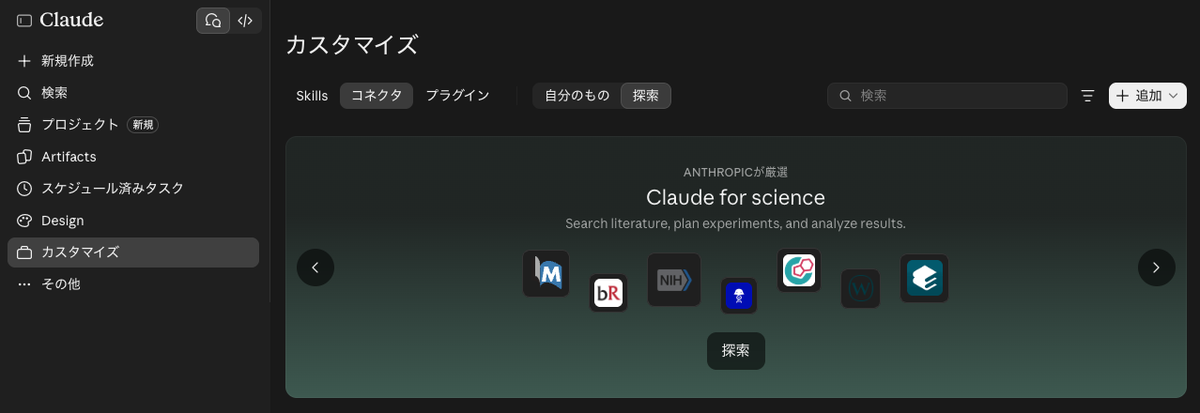
+ Add → Add custom connector
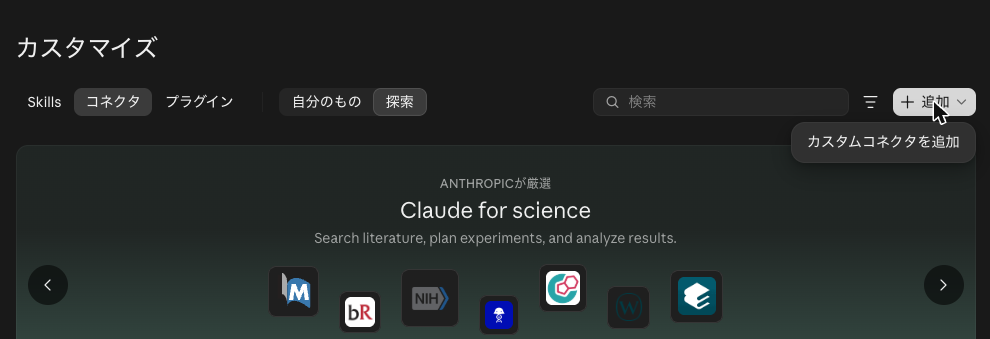
Enter the name and URL, then Continue
Enter “Queria” as the name and https://queria.io/mcp as the MCP server URL, then press Continue.
Approve on Queria
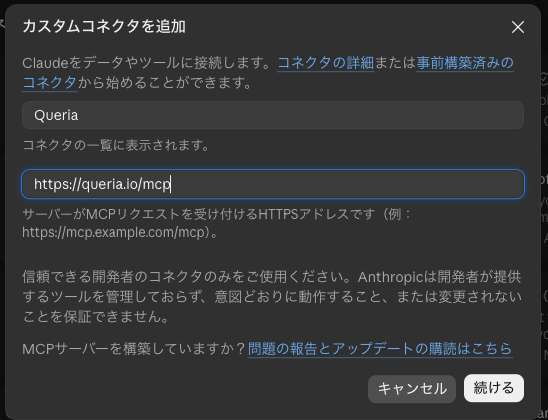
Queria’s sign-in and approval screen opens. Approve it.
Turn Queria on in the chat
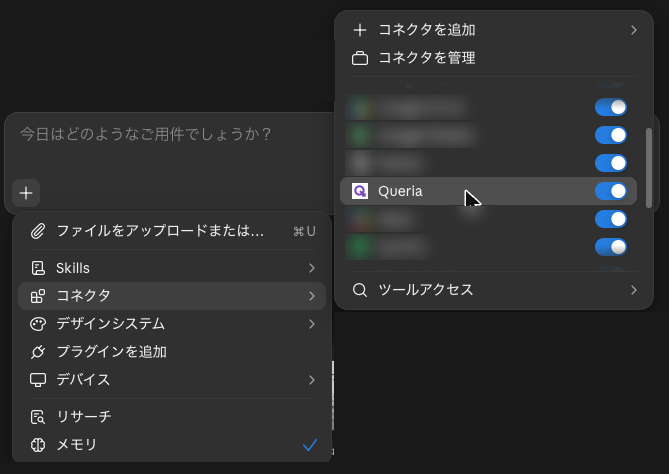
In the chat, open + at the lower left → Connectors and turn Queria on.
- The free plan can add it too (one custom connector)
- On Team and Enterprise plans, an organization owner adds it under the organization’s connector settings, and each member connects
- Connectors you add appear in the mobile apps on the same account
Turn on Developer mode
Open Settings → Apps (Connectors) → Advanced and turn on Developer mode.
Create Queria
Press Create, enter “Queria” as the name and https://queria.io/mcp as the URL, and choose OAuth.
Connect and approve
Press Connect and approve on Queria’s sign-in and approval screen.
Pick Queria in the chat
In a new chat, open + → Developer mode and pick Queria.
- Developer mode is available on Plus, Pro, Business, Enterprise and Edu. Not on Free or Go
- On Business and Enterprise, a workspace owner has to allow Developer mode first
- Menu names change from time to time. If you cannot find it, search the settings for “Developer mode”
Using it from Copilot needs work by your organization’s administrator.
Create an agent
An administrator creates an agent in Copilot Studio.
Add the MCP tool
In the agent, open Tools → Add a tool → New tool → Model Context Protocol.
Enter the URL and authentication
Enter https://queria.io/mcp as the server URL and choose OAuth 2.0 with Dynamic discovery.
Publish and share
Publish the agent to Microsoft 365 Copilot and Teams, and share it with the people who use it.
- Users may need a Microsoft 365 Copilot license
- To show the table and chart view, a declarative agent built with the Microsoft 365 Agents Toolkit suits better than Copilot Studio
- For local governments and organizations, we prepare the setup steps for you. Get in touch
Things to ask
- Show the population of each district in Tsukuba as a table, largest first
- Make a line chart of population over time by prefecture
- Which municipalities in Tokyo have the highest share of people aged 65 and over?
For the permissions the AI gets when you approve, and local AI tools such as Claude Code and Cursor, see MCP server.